The 13 best AI video generators in 2026
These are the best AI video generators right now, based on my own testing, benchmark data, and what each tool is actually good for.
Updated: May 13, 2026
Making video still takes a lot of work. You need an idea, a script, footage, timing, captions, audio, edits, and enough patience to fix the tiny things that make a clip feel off.
AI video tools can remove much of that work, but the category is messy. When someone says "AI video generator" they might mean completely different things: a model that creates new video content from a prompt, a tool that makes avatar videos from a script, or an AI editor that cuts, captions, and repurposes footage you have already recorded.
That makes it hard to know which tool is actually best and what each one is good for. In this guide I focus on the best AI video generators that experts and creators use, and I also include the best tools for AI avatar video and AI video editing.
The best AI video generators at a glance
| Tool | Category | Best for | Paid plan starting price |
|---|---|---|---|
 Dreamina Dreamina | AI video generator | Short social clips | ~$18/month |
 Invideo Invideo | AI video generator | Multi-model creative suite | $17/month |
 Grok Grok | AI video generator | Fast social concepts | $30/month |
 Runway Runway | AI video generator | Creative control | $12/user/month |
 Google Veo Google Veo | AI video generator | Audio + dialogue scenes | $19.99/month |
 Kling Kling | AI video generator | Cinematic b-roll | $6.99/month |
 Luma Luma | AI video generator | Complete video workspace | $30/month |
 HeyGen HeyGen | AI avatar generator | Presenter + localization videos | $29/month |
 Synthesia Synthesia | AI avatar generator | Training videos | $18/month |
 Descript Descript | AI video editor | Podcast edits | ~$12/month |
 OpusClip OpusClip | AI video editor | Long-to-short clips | $15/month |
 VEED VEED | AI video editor | Subtitled social edits | ~$12/month |
 Riverside Riverside | AI video editor | Remote podcast recording | $24/month |
Happy Horse 1.0 and Seedance 2.0 are the best text-to-video models right now. On both Artificial Analysis and Arena.ai, they sit in the #1 and #2 spots for text-to-video. The exact order can flip depending on how each benchmark scores motion, audio, and prompt matching, but both are consistently at the top.
What about Sora?
Sora usually ranks high in text-to-video comparisons, but I did not include it because OpenAI discontinued it on April 26, 2026. Reporting around the shutdown framed Sora as a money pit, with estimates around $1 million per day to operate, low user adoption, and compute demands that were draining resources.
With that out of the way, I grouped the remaining picks by how you would actually use them: tools that generate video from prompts, tools that make avatar presenter videos, and tools that speed up editing.
The best AI video generators
Start here when you want to create a new clip from a text prompt, an image, or a rough scene idea.
1. Dreamina (Seedance 2.0)
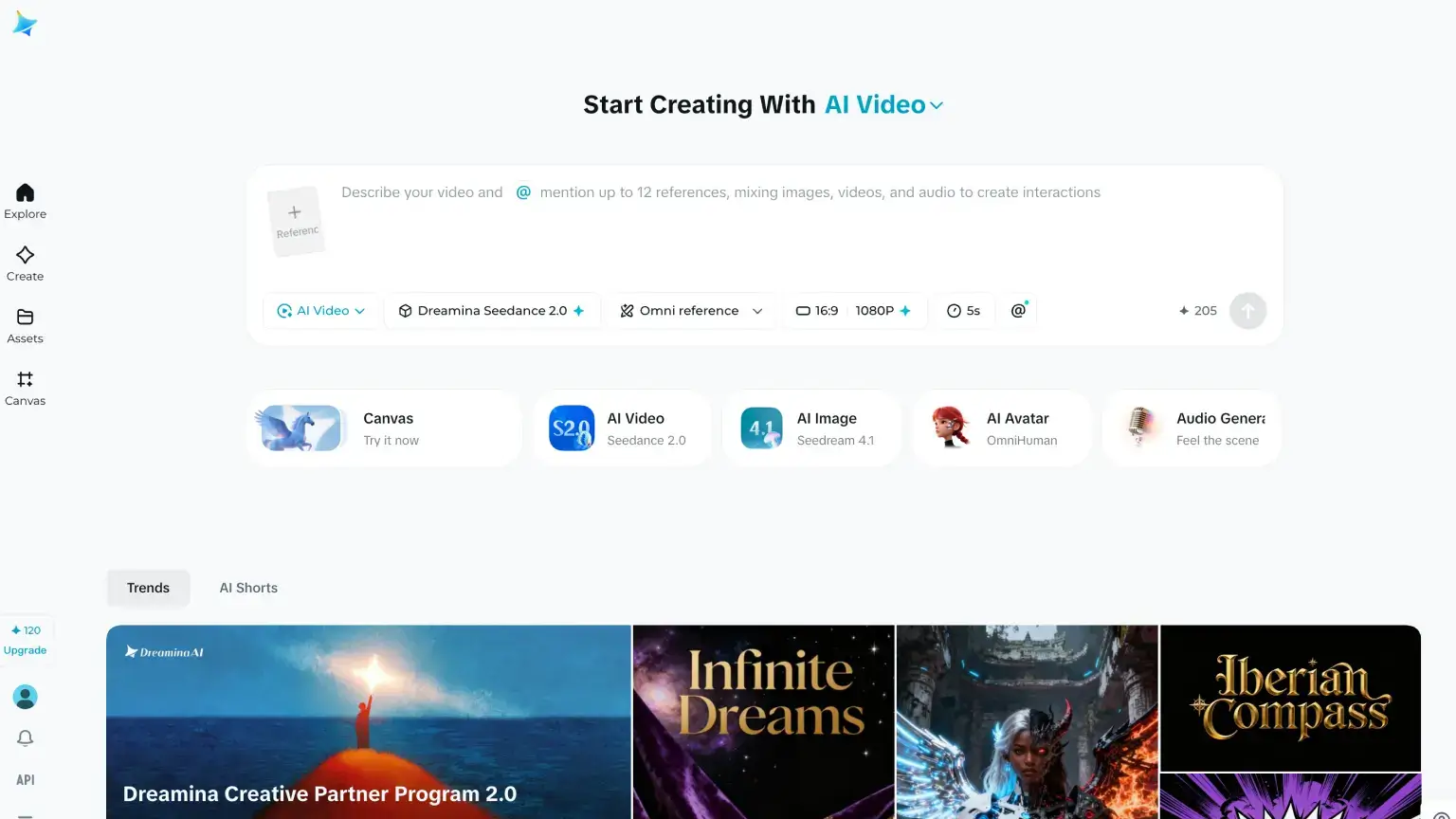
Best for: Short, social-ready clips where you want stable subjects and intentional camera motion without opening a full VFX suite.
The real highlight here is Seedance 2.0, ByteDance's video model. Dreamina is ByteDance's own easy way to run it, but Seedance also shows up inside broader creative suites like Invideo, Higgsfield, and other apps that bundle multiple AI video models.
Seedance 2.0 is a strong pick for short clips that need believable motion, stable subjects, and a social-media-ready look. It also ranks #1 or #2 on popular text-to-video benchmarks like Artificial Analysis and Arena.ai.
Key Features
- Image + prompt control: Use a reference image with the prompt to keep the subject more stable across a short clip.
- Readable camera moves: Handles pans, pushes, and handheld-style movement better than many lightweight generators.
- Short-form output paths: Fits vertical and square social clips without forcing a full post-production workflow.
- CapCut-adjacent workflow: Best when you want to generate, trim, caption, and publish quickly.
Pros and cons
- Pros: Excellent motion for short clips; approachable UI paths through Dreamina/CapCut; strong fit for creators who already live in those apps.
- Cons: Pricing and rules depend on where you use Seedance; not always the right choice for long-form storytelling; some apps may get new model updates later than others.
Pricing
Dreamina lists three paid tiers: Basic, Standard, and Advanced. Basic starts at $18/month, with Standard and Advanced adding larger credit pools.
Because Dreamina uses credits, run a short Seedance test before buying a bigger plan. The price is easy to read, but the real cost depends on clip length, quality settings, and how often you retry.
If you want Seedance next to other models in the same workspace, Invideo and Higgsfield are worth checking too.
2. Invideo (Happy Horse 1.0)
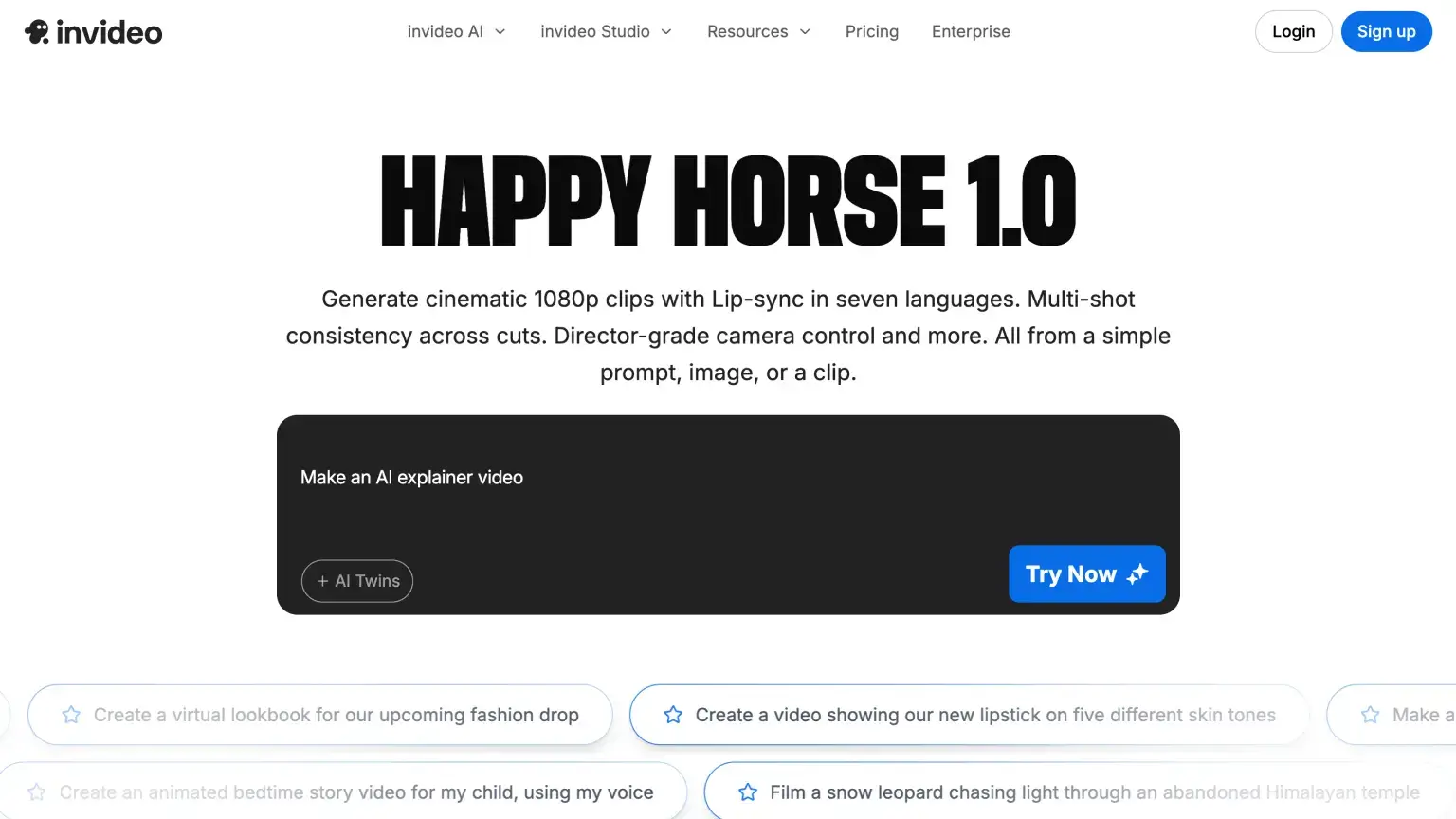
Best for: Dialogue-forward clips where lip sync and believable speech matter as much as visuals.
Happy Horse 1.0 is Alibaba's video model, and it is usually available inside larger video apps rather than as a standalone product. Invideo is the clearest place to start because it gives you Happy Horse alongside other major models in one editor.
Invideo is useful because it lets you try multiple video models from one place: Happy Horse 1.0, Seedance 2.0, Google Veo 3.1, Kling 3, and more. Happy Horse is the reason to start here if the clip needs a person speaking naturally, while the wider model picker makes Invideo feel more like a creative suite than a single generator. It is a good fit for ads, launch teasers, and short explainers.
Key Features
- Speech inside the generation: Good for clips where the spoken line needs to match the person and scene, not feel pasted on later.
- Multi-model switching: Lets you test Happy Horse against Seedance, Veo, Kling, and other models in one workspace.
- Marketing-ready formats: Works well for short ads, launch teasers, and social explainers that need fast variants.
- Stock + editor layer: Useful when you want generated scenes, stock footage, captions, and edits in one place.
Pros and cons
- Pros: Strong fit for marketing videos; good balance of visuals and speech in one generation pass; easy to compare when bundled with other models.
- Cons: Features can differ depending on the app you use; pricing requires reading the app's credit rules; policy and licensing terms vary by platform.
Pricing
Invideo's annual pricing starts with Plus at $17/month for 75 credits, then Max at $85/month for 390 credits. Generative is $170/month with 800 credits, while Elite is $900/month with 4,250 credits for teams or creators producing a lot of AI video.
All paid tiers include access to Invideo's AI model lineup, watermark-free exports, and stock assets; higher tiers mostly buy you more credits, storage, avatar/voice clone limits, and concurrency. Credit burn still depends on the model and settings, so check Invideo pricing before estimating a full month of renders.
3. Grok Imagine
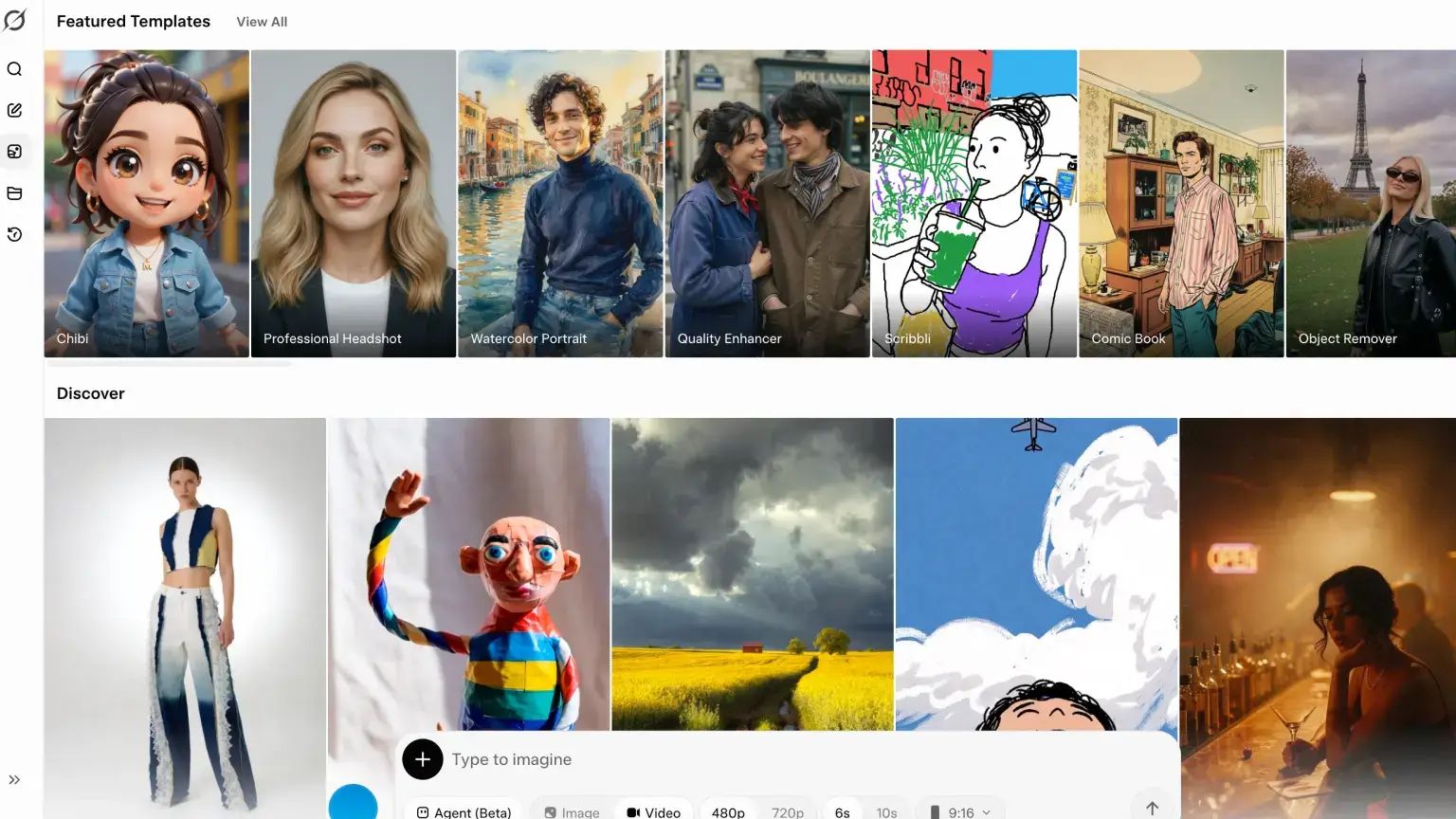
Best for: Quick video ideas, meme-style clips, and fast experiments tied to what people are talking about online.
Grok Imagine is good when you want a short, fast-moving visual idea more than a carefully directed scene. Think seconds-long meme clips, quick social hooks, reaction-style visuals, and rough concepts you can judge immediately.
The motion can be fun and punchy, but it is not the tool I would choose for exact blocking, long continuity, or polished commercial footage. Treat the output like a moving sketch: useful when you need to see whether an idea has energy, risky when every frame needs to match a brand board.
Key Features
- Short clip ideation: Best for quick, seconds-long concepts rather than multi-scene narrative video.
- Prompt-to-variation loop: Easy to ask for a stranger version, cleaner version, or different setting without opening a timeline.
- Social-first motion: Strongest when the clip needs a punchy visual hook, not careful cinematic blocking.
Pros and cons
- Pros: Extremely fast concepting; strong for social-native creative; simple to use if you already pay for Grok access.
- Cons: Not the most predictable choice for brand-controlled campaigns; fewer "pro cinematography" controls than Runway-class tools; access tiers matter.
Pricing
Consumer access runs through the SuperGrok plan, which starts at $30/month. If you want Grok Imagine through the API instead, xAI lists video generation at $0.05 per second; see xAI pricing for current model and usage rates.
4. Runway Gen‑4.5

Best for: Higher-end creative work where you want more control over camera movement, references, and edits.
Runway is one of the strongest tools when you care about control. The interface is polished, the preset options are genuinely useful, and you can guide the look, camera movement, references, and edits more carefully than you can in simpler prompt-only tools.
That makes it a good fit for ads, music videos, concept films, product shots, and creative projects where the final clip needs to feel intentional. Runway also gives you access to outside models like Seedance 2.0, so it can work as a broader video workspace instead of only a Runway-model app.
Key Features
- Shot-level direction: Better than prompt-only tools when you describe framing, camera motion, and subject behavior.
- Reference-based control: Lets you anchor identity and style with references instead of hoping the prompt carries everything.
- Generation plus finishing: Pairs model output with Runway's broader editing and video tools.
- Credit-based iteration: Built for repeated passes when a clip is worth refining instead of accepting the first render.
Pros and cons
- Pros: Serious motion and continuity potential; excellent when output quality is worth extra iteration; strong for filmmakers and heavy creators.
- Cons: Steeper learning curve; subscription + credits economics need monitoring; can be overkill for ultra-simple clips.
Pricing
Runway has a free plan with 125 one-time credits. Paid plans start with Standard at $12/user/month for 625 monthly credits, then Pro at $28/user/month and Unlimited at $76/user/month on annual billing.
For API access, Runway prices video generation at 12 credits per second, and credits can be purchased at $0.01 each. Budget roughly $0.12 per generated second before retries or variants. Check Runway pricing and the Runway API pricing guide before estimating a production workload.
5. Google Veo 3.1
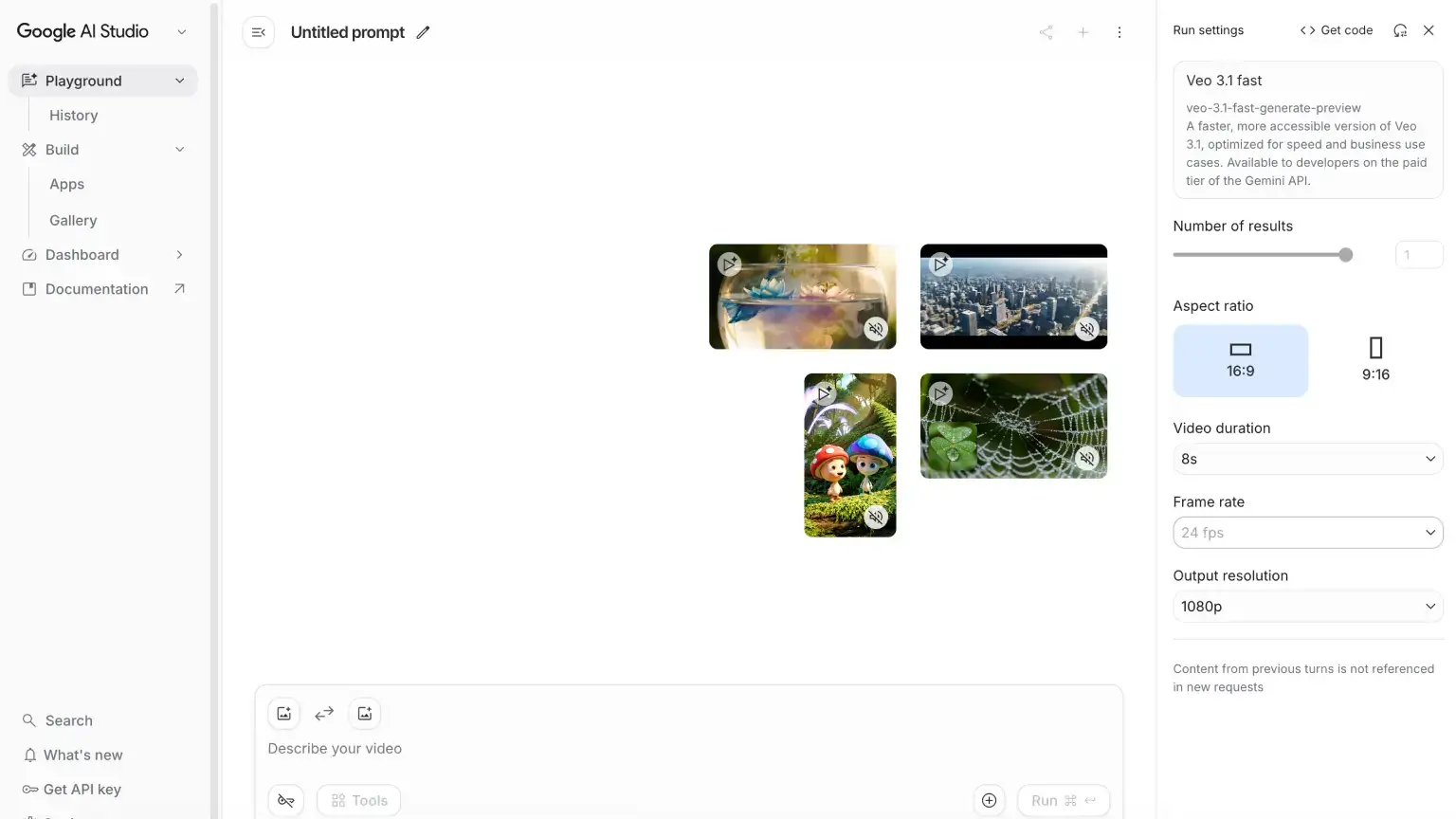
Best for: Video ideas where the audio, dialogue, and visuals need to be created together.
Google Veo is strongest when sound is part of the idea from the start. If you want a short scene with dialogue, background sound, or a more film-like feel, Veo is easier to understand than tools that only generate silent clips.
It also understands normal language and cinematic terms well, so you can describe camera movement, mood, and scene details without writing a technical prompt. The confusing part is access: you may use Veo through Gemini, Google's developer tools, or cloud products, and each path has different limits.
Key Features
- Audio and visuals together: Built for scenes where dialogue, lip sync, and environmental sound need to arrive in the same generation.
- Natural-language scene prompts: Understands plain descriptions of mood, action, camera movement, and setting.
- Higher-resolution options: 720p, 1080p, and 4K generation options are available for production workflows.
Pros and cons
- Pros: Excellent when audio matters; strong fit for people already using Google tools; good option for serious video generation at scale.
- Cons: Availability and limits change by product; pricing can be complex across consumer vs cloud paths; not always the simplest tool for one tiny clip.
Pricing
Consumer access comes through paid Gemini plans: Google AI Pro at $19.99/month or Google AI Ultra at $249.99/month. Pro is the realistic entry point for trying Veo inside Gemini; Ultra is the heavier plan when you need much higher limits.
For API access, Google lists Veo generation at $0.40 per second for 720p and 1080p outputs, and $0.60 per second for 4K. Start with Gemini subscriptions for consumer access and compare against Gemini API pricing for API access.
6. Kling 3.0
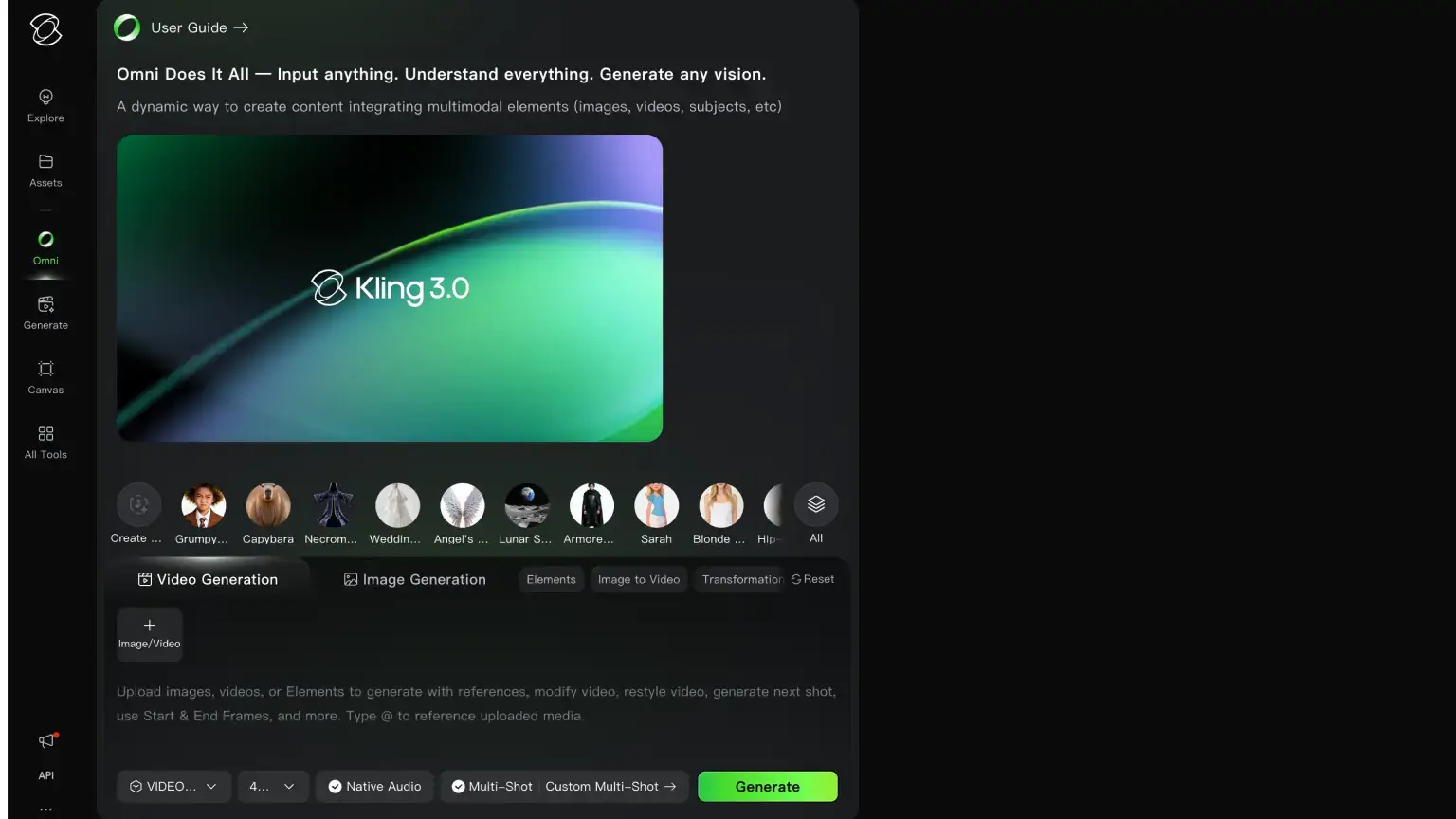
Best for: Cinematic visuals and longer takes, especially travel imagery, mood pieces, and dramatic b-roll.
Kling keeps showing up in creator conversations because it can make scenes feel cinematic. It handles lighting, mood, camera movement, dramatic b-roll, and realistic human motion well.
It is a good tool to test for travel shots, music visuals, fashion clips, fantasy scenes, and moody product videos. It still takes planning if you want several clips to match each other, and small prompt details like exact colors or background objects can still drift.
Key Features
- Longer-feeling takes: Useful when you want a shot that breathes instead of a one-second visual gag.
- Cinematic lighting and depth: Strong at atmosphere, realistic environments, and dramatic b-roll.
- Stylized scene range: Handles fantasy, neo-noir, surreal, travel, and fashion prompts without collapsing into one generic look.
- B-roll workflow: Best when you generate several strong clips and assemble the final piece elsewhere.
Pros and cons
- Pros: Often gorgeous motion and lighting; excellent for creators prioritizing aesthetics; strong community momentum.
- Cons: Account rules can vary by region; less suited to corporate template videos; credit usage still requires tracking.
Pricing
Kling has a free Basic plan, but it does not include monthly credits. Paid plans start with Standard at $6.99/month for about 33 720p videos, then Pro at $25.99/month for about 150, Premier at $64.99/month for about 400, and Ultra at $127.99/month for about 1,300.
Those estimates map to Kling's monthly credit pools: 660, 3,000, 8,000, and 26,000 credits. The higher tiers also buy more daily free uses, faster generation, priority access, commercial-use rights, and watermark removal. Verify current renewal pricing and credit rules on Kling AI before committing.
7. Luma Labs (Ray3)
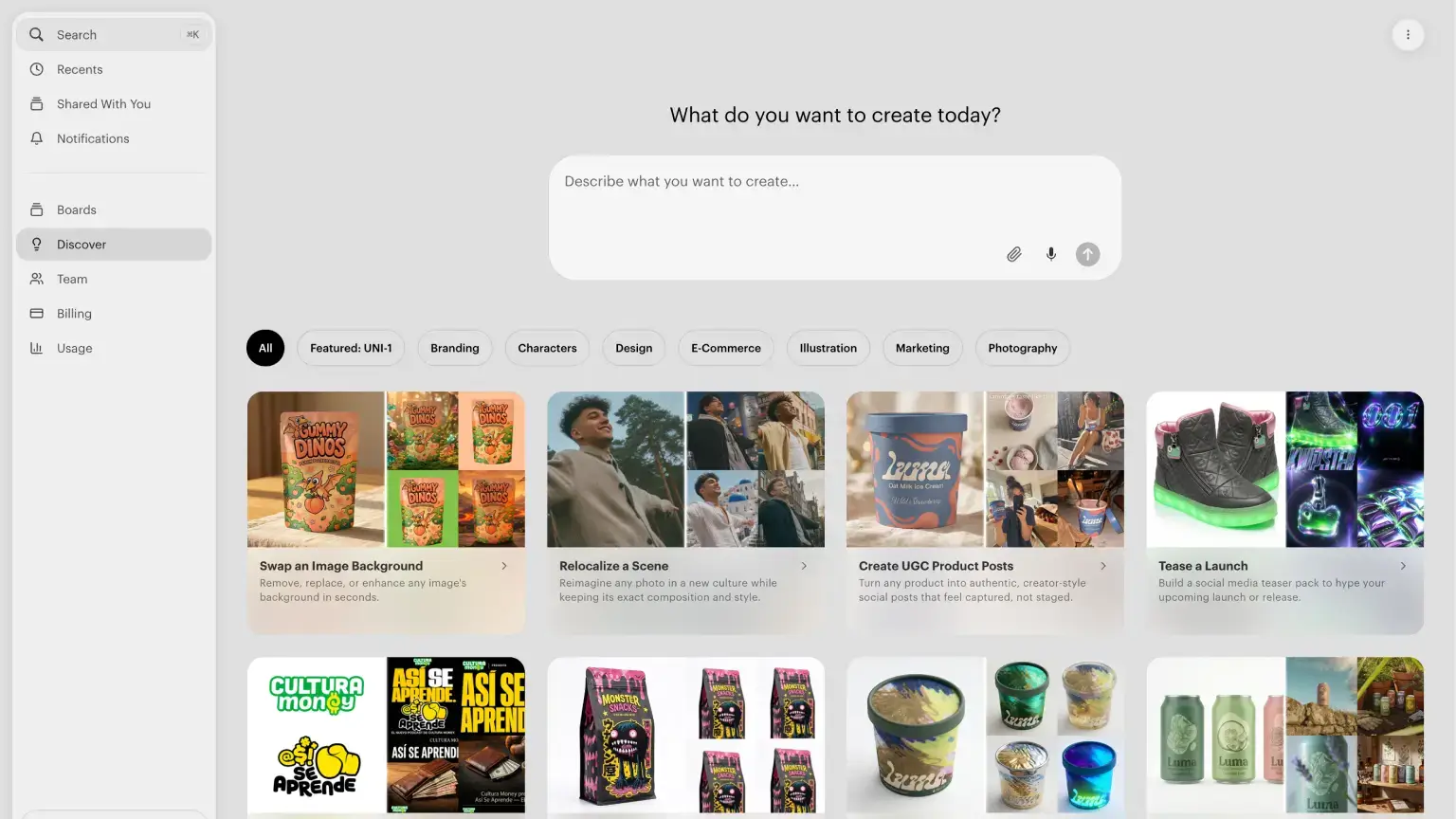
Best for: Realistic clips where objects and movement need to feel physically believable.
Luma's Ray3 is a good pick when the video needs to feel grounded. It is useful for product scenes, architecture shots, concept videos, and clips where objects should move in a believable way.
The bigger reason I like Luma is the workspace. It feels built for video from the ground up: keyframes, editing options, sound effects, music, and enough post-generation controls to keep shaping the result. A lot of AI video tools still feel like "write a prompt and hope." Luma gives you more room to actually make the video.
Key Features
- Physically plausible movement: Good for objects, people, and camera motion that need to feel grounded.
- Reference-aware generation: Rewards careful source images and prompt constraints when consistency matters.
- Less plastic realism: Better when you want believable footage instead of an over-smoothed AI look.
- Post-generation controls: Includes editing options, sound effects, music, and useful controls after the first render.
Pros and cons
- Pros: Excellent when realism beats surrealism; strong for grounded marketing and concept validation; great for motion-sensitive shots.
- Cons: Credit burn at 80 per second for 1080p adds up fast on longer clips; workspace depth means a steeper learning curve than simpler prompt-only tools.
Pricing
Luma's individual plans start with Plus at $30/month, then Pro at $90/month and Ultra at $300/month. Pro includes 4x usage with the Luma Agents versus Plus, while Ultra raises that to 15x versus Pro.
Video generation is credit-based: budget 20 credits per second for 720p and 80 credits per second for 1080p. See Luma pricing for current plan allowances and credit rules.
Best AI avatar video generators
Avatar tools are useful when you need a presenter on screen, but you do not want to film every version yourself.
8. HeyGen
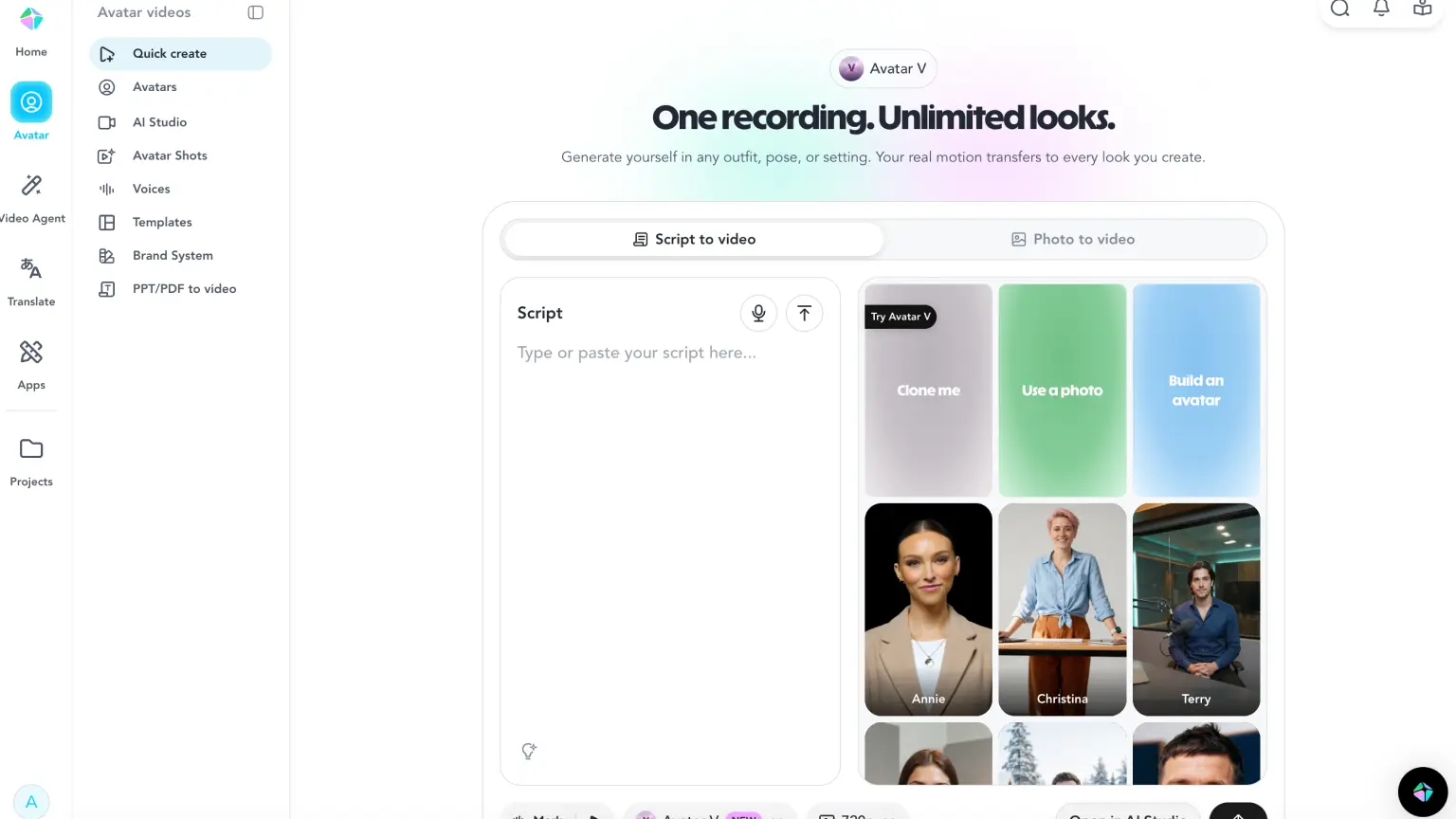
Best for: Fast presenter videos, sales hooks, onboarding explainers, and localized variants.
HeyGen is one of the easiest tools for making presenter-style videos. You bring a script, choose an avatar and voice, then revise lines or translate the video without filming again.
It works well for sales videos, onboarding clips, landing page explainers, and localized versions of the same message. The localization side is the real strength: you can turn one presenter video into many language versions much faster than filming each one.
Key Features
- Avatar presenter workflow: Choose a presenter, paste a script, and regenerate takes without filming.
- Localization workflow: Turn one presenter video into multiple language versions faster than reshooting.
- Voice and lip sync tools: Designed around speech-first clips where delivery matters.
- Template-based business videos: Fast assembly for explainers, landing page videos, sales hooks, and onboarding.
Pros and cons
- Pros: Extremely practical for business video; strong iteration speed; approachable learning curve.
- Cons: Avatars can feel similar without careful creative direction; advanced storytelling still benefits from traditional filming; usage scales with subscription tier.
Pricing
HeyGen has a Free plan with up to 3 videos per month. Creator is $29/month with unlimited avatar videos and 1080p export, while Pro is $99/month for higher capacity and faster processing.
Confirm current allowances on HeyGen pricing, especially if you need lots of localization or recurring sales videos.
9. Synthesia
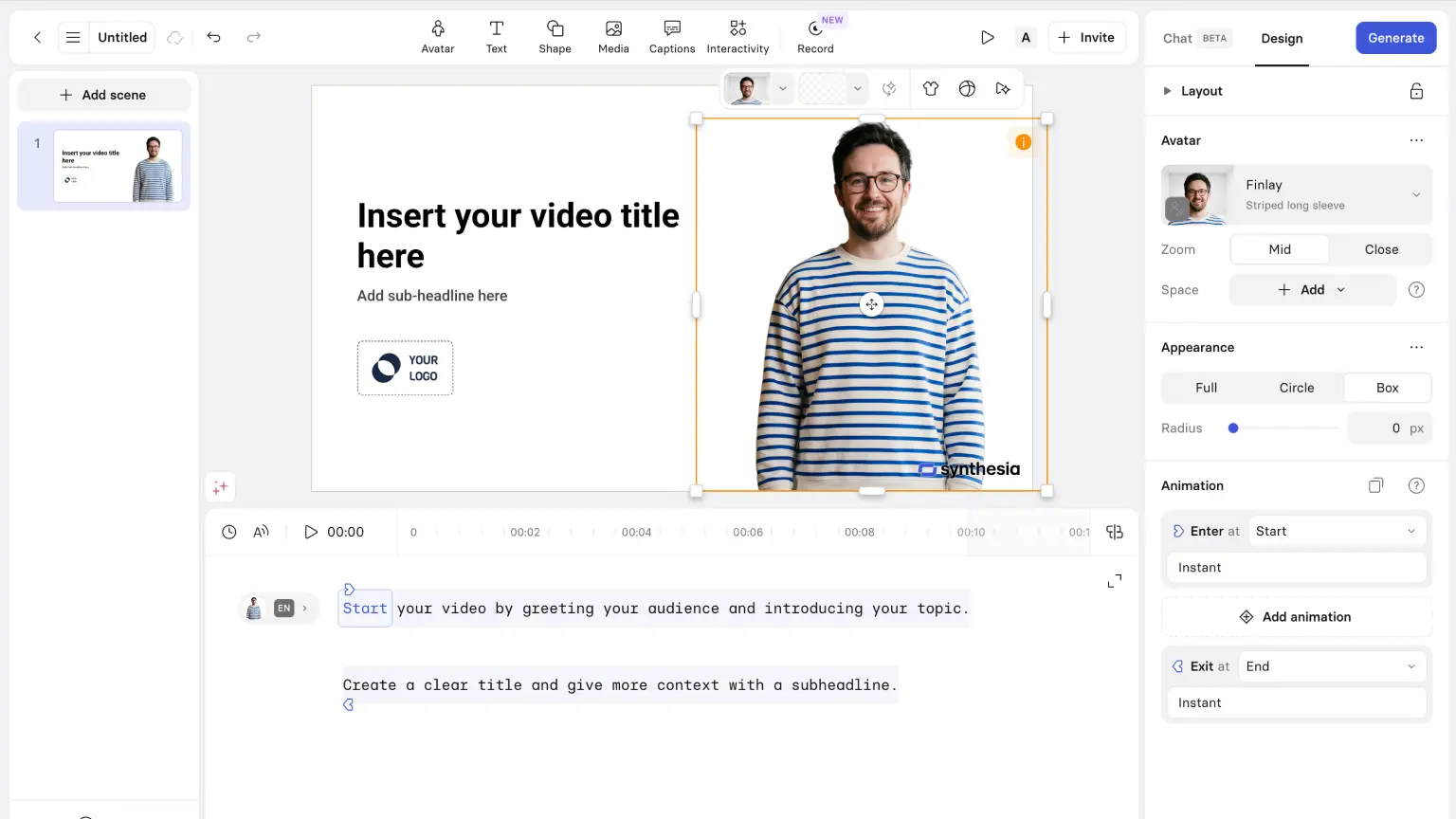
Best for: Training videos, internal updates, and company-wide video programs.
Synthesia is close to HeyGen, and both are solid avatar video tools. My experience is that Synthesia is better for longer, more structured videos where the editor, templates, and repeatable format matter.
That makes it a strong pick for training, internal communication, product education, and company updates. HeyGen often feels stronger when maximum avatar realism is the goal, while Synthesia feels more dependable when you need to make the same kind of business video again and again.
Key Features
- Structured training templates: Built for repeatable lessons, product education, and internal updates.
- Enterprise localization: Strong fit for translating company videos without rerecording each version.
- Approval workflows: Useful when legal, product, or leadership needs to review before publishing.
- Consistent presenter style: Better for clean company communication than experimental social clips.
Pros and cons
- Pros: Excellent for training and internal comms; built for repeatable updates across teams; strong review and brand controls.
- Cons: Less oriented toward viral social experiments; pricing reflects larger-team use; creative spontaneity can feel constrained.
Pricing
Synthesia's Basic plan is free and includes around 10 minutes of video per month. Starter is $18/month with a personal avatar and access to 125+ avatars, while Creator is $64/month with more capacity, more avatars, and API access.
See Synthesia pricing before buying, especially for team rollout, localization, or enterprise controls.
Best AI video editors
These tools are for clips you already recorded, or AI clips you generated elsewhere and now need to edit.
10. Descript
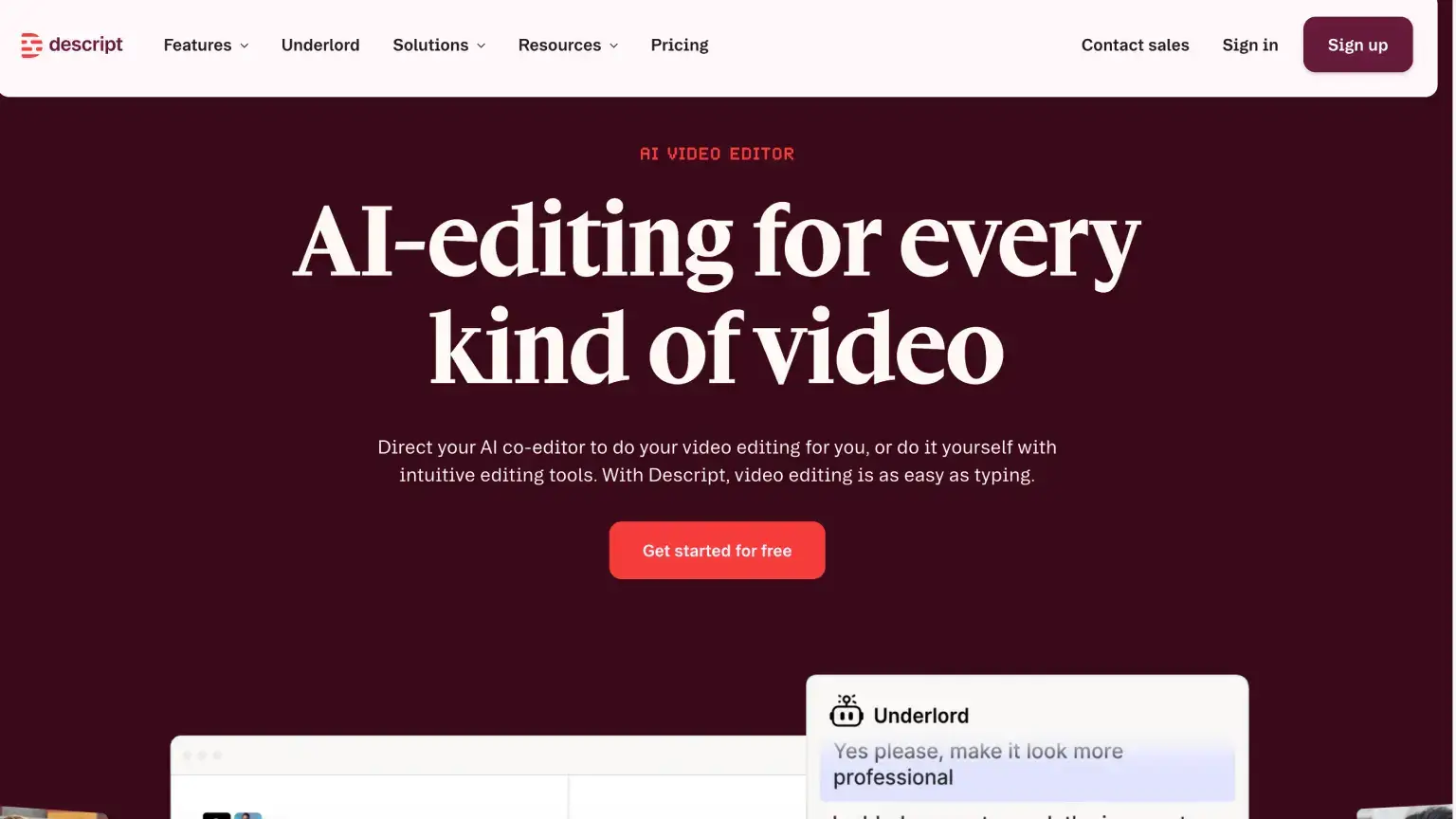
Best for: Podcast-to-video pipelines and talking-head edits where the transcript should drive the cut.
Descript lets you edit video by editing the transcript. Delete a sentence from the text, and Descript cuts that part from the video. That makes it excellent for interviews, podcasts, solo explainers, and educational content.
It is strongest when most of the video is people talking. You can remove filler words, tighten long pauses, create captions, and turn a long recording into shorter clips much faster than in a traditional timeline editor. Voice cloning and repair tools need extra care, so check the product rules before using them for client work.
Key Features
- Edit video like text: Delete or move transcript lines and Descript cuts the matching video.
- Filler-word and pause cleanup: Speeds up talking-head edits without manual timeline surgery.
- Voice repair tools: Helpful for fixing small narration issues, with extra care around consent and policy.
- Review-friendly workflow: Useful when several people need to comment on a cut.
Pros and cons
- Pros: Incredible speed for speech-driven edits; excellent learning curve for non-editors; strong for repurposing long recordings.
- Cons: Not the first choice for heavy visual effects; generative video features evolve quickly, so keep an eye on plan tiers; power users may still pair it with a traditional editor.
Pricing
Descript's Free plan includes 1 media hour, limited exports, and 100 one-time AI credits. Hobbyist is about $12/month with 10 media hours and 400 AI credits, Creator is about $24/month with 30 media hours and 800 credits, and Business is about $40-55/user/month with 40 media hours and 1,500 credits.
Paid plans add watermark-free exports, better export quality, more AI tools, and more collaboration features. See Descript pricing before committing, especially if you edit long podcasts or team projects.
11. OpusClip
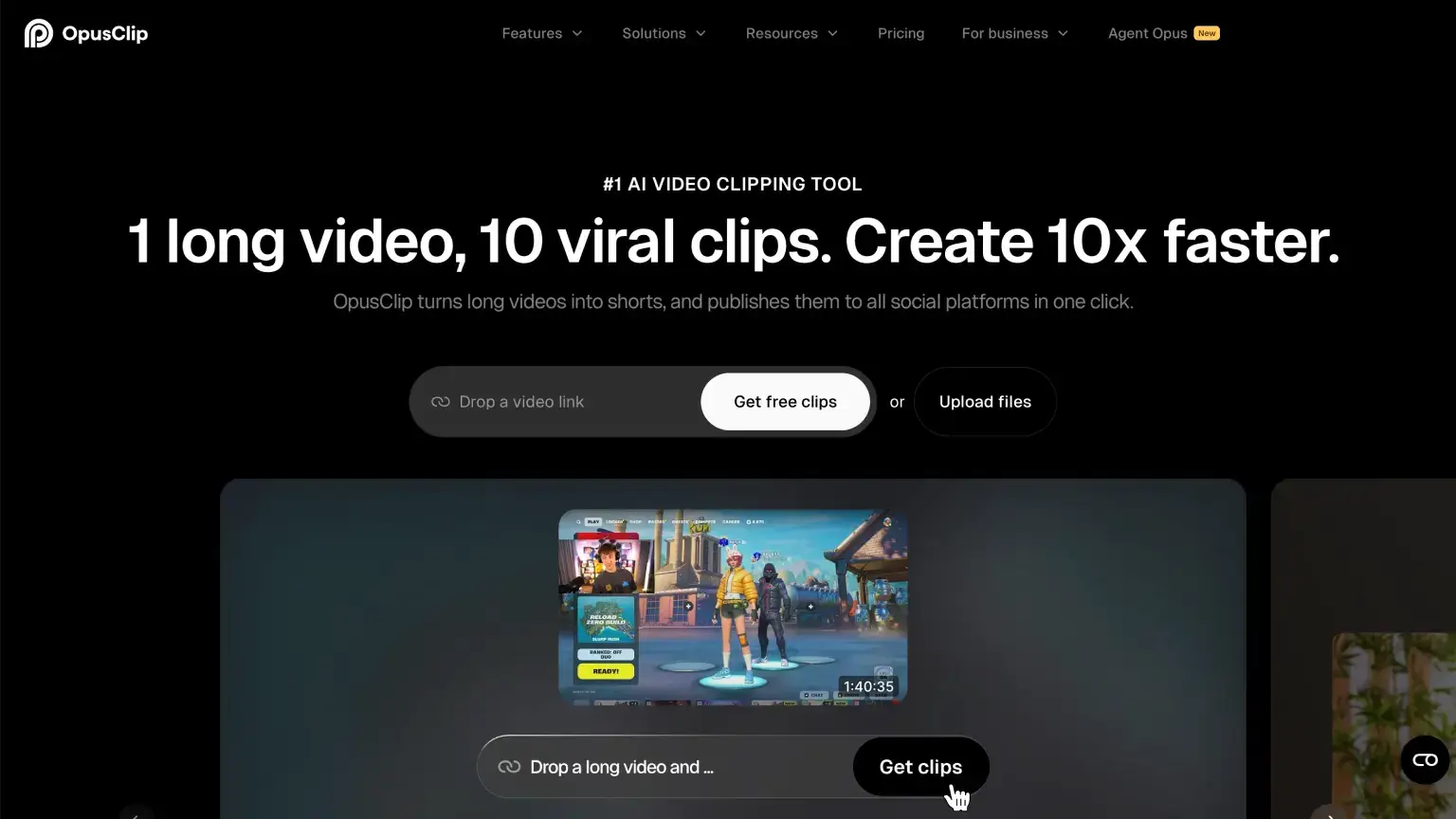
Best for: Turning long recordings into short-form candidates with titles, hooks, and captions.
OpusClip is built for turning long videos into short clips. Upload a webinar, podcast, or interview, and it suggests moments that might work on TikTok, YouTube Shorts, Instagram Reels, or LinkedIn.
It is useful when you already record good long-form content but never have time to cut it into smaller posts. The output still depends on the quality of the original video, and I would not use it as a full editor for a polished long-form story.
Key Features
- Long-to-short detection: Finds candidate moments from podcasts, webinars, interviews, and long videos.
- Auto captions and hooks: Creates short-form clips with captions, titles, and opening hooks.
- Vertical feed formatting: Exports are tuned for TikTok, Shorts, Reels, and LinkedIn clips.
Pros and cons
- Pros: Huge time saver for repurposing; strong for creators with long raw assets; speeds up experimentation with hooks.
- Cons: Less suited as a full replacement editor for long-form videos; quality depends on the original footage; subscription economics vary by usage.
Pricing
OpusClip's Starter plan is $15/month with 150 credits per month. Pro is $14.50/month on annual billing, sold as packs with 3,600 credits per year available instantly, while Business is custom for tailored credits, seats, API, and integrations.
Credits are easy to estimate: 1 credit equals 1 minute of video. Starter is the simple monthly option for individual creators; Pro adds team workspace, more templates, B-roll, broader exports, and more source inputs. See OpusClip pricing.
12. VEED
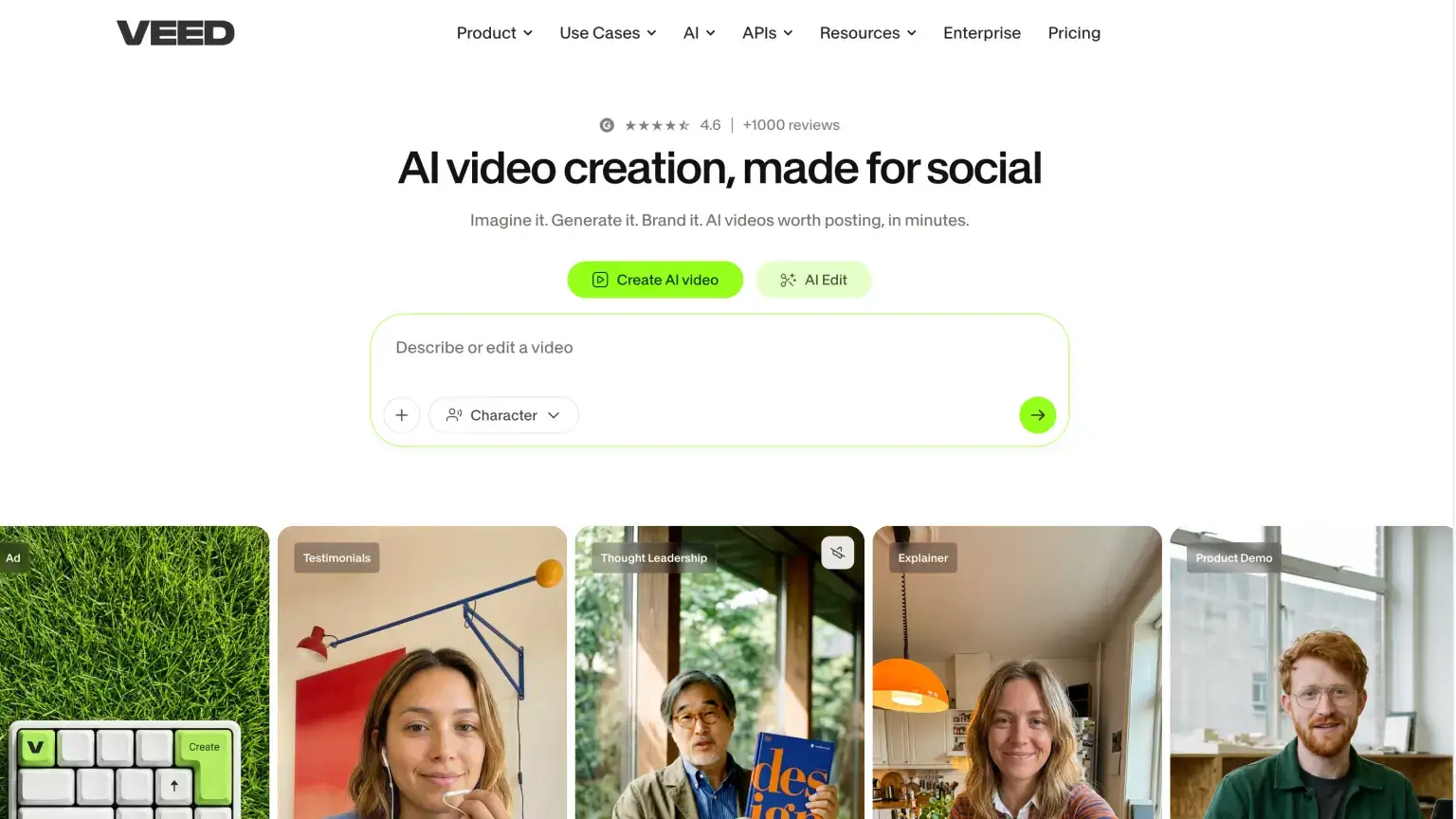
Best for: Lightweight browser editing with AI helpers when installing software is not worth the hassle.
VEED is a browser-based editor for quick video jobs. It is useful for subtitles, simple cuts, resizing, light edits, and fast exports when you do not want to install heavier editing software.
It is a good fit for founders, marketers, educators, and contractors who need solid videos without a complex editing setup. Heavy projects can feel slower than desktop editors, so I would use it for social clips, explainers, and marketing videos instead of long films.
Key Features
- Browser-based timeline: Handles simple cuts, resizing, and exports without desktop editing software.
- Subtitle generation: Practical when captions are part of the deliverable, not an afterthought.
- Quick social templates: Useful for repeatable formats across ads, explainers, and short posts.
- Lightweight AI helpers: Good for small edits, but verify your tier before promising client deliverables.
Pros and cons
- Pros: Extremely accessible; strong for quick marketing clips; low setup cost.
- Cons: Free exports often have limits; advanced finishing is limited; heavy projects can feel sluggish compared to desktop editors.
Pricing
VEED has a Free plan with 10-minute exports, 720p quality, and limited stock assets. Paid annual plans start with Creator at about $12/month per user, then Pro at about $25/month per user and Studio at about $40/month per user; Enterprise is custom.
Creator removes watermarks and adds 1080p exports, while Pro and Studio add 4K exports, more storage, and broader stock/audio access. See VEED pricing.
13. Riverside
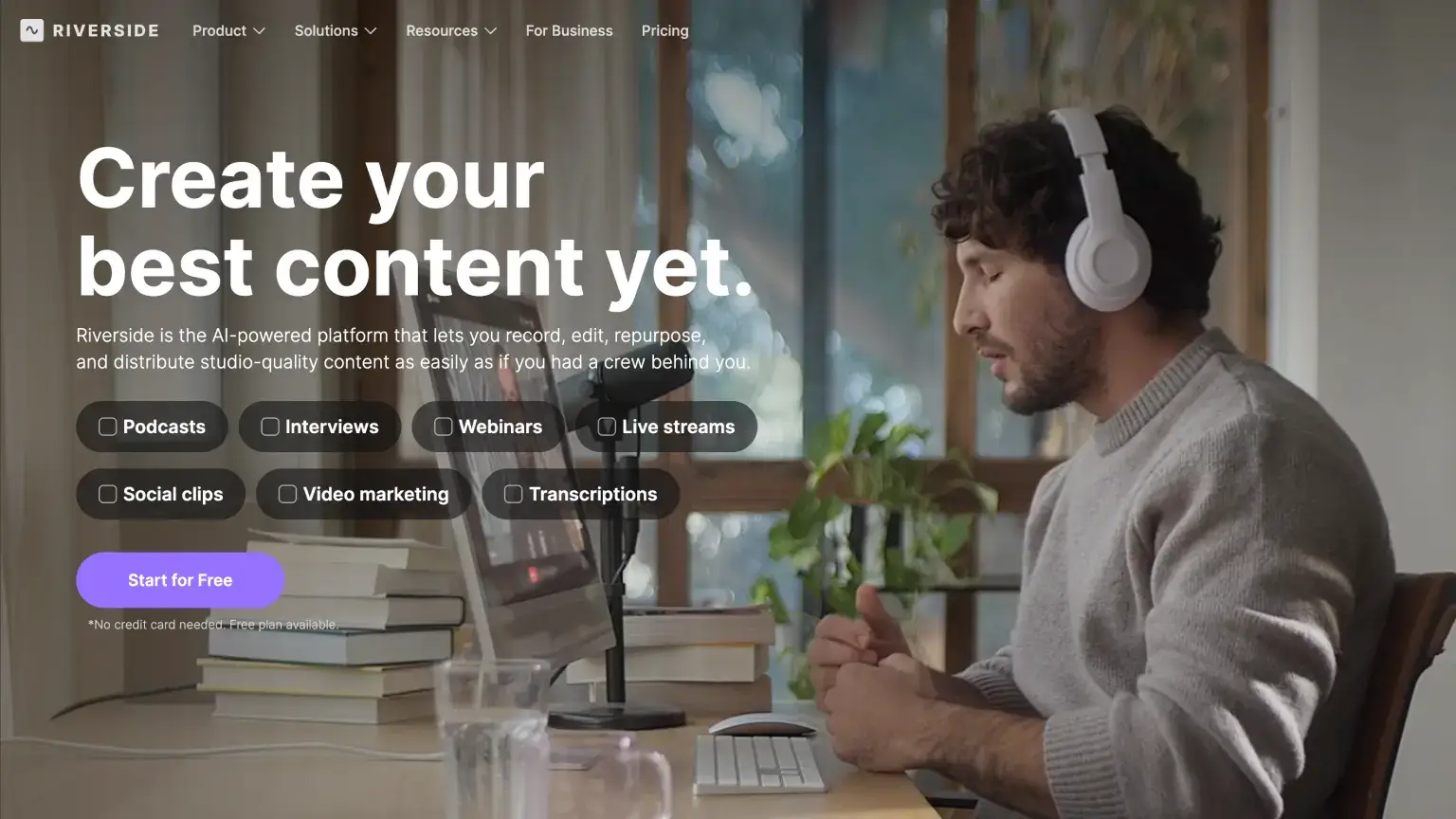
Best for: Remote recording sessions that need clean audio and video tracks as the foundation for everything downstream.
Riverside is different from most tools on this list because it starts with recording quality. It records remote interviews, podcasts, and video shows in separate high-quality tracks, then gives you AI tools for editing and repurposing.
If you record through a normal video-call app, you can end up fighting bad audio, low resolution, and sync issues later. Riverside helps you capture cleaner source footage first, which makes every AI edit after that easier.
Key Features
- Separate local tracks: Records cleaner remote audio and video before compression ruins the source.
- Up to 4K desktop video: Useful when interviews, webinars, or shows need a sharper source file.
- AI editing assists: Helps turn recordings into edited episodes and shorter clips.
- Creator publishing workflow: Built for people who regularly ship interviews, podcasts, and video shows.
Pros and cons
- Pros: Excellent recording quality; strong for podcasters and interview shows; fewer "fix it in post" when your recording setup is solid.
- Cons: Not a full generative studio on its own; advanced AI features depend on tier; pricing climbs with production needs.
Pricing
Riverside has a Free plan with 2 hours of separate audio and video tracks as a one-off allowance. Paid plans start with Pro at $24/month, then Live at $34/month and Webinar at $79/month; Business is custom.
Pro, Live, and Webinar each include 15 hours per month, watermark removal, unlimited recording hours, local recording, and up to 4K desktop video quality. See Riverside pricing.
Which AI video generator should you actually use?
There is no single winner. There is a winner for your use case.
If you want strong motion quality for social clips, start with Seedance 2.0 in Dreamina/CapCut and test a few real prompts before buying more credits. If you want clips where a person speaks on screen, try Invideo with Happy Horse 1.0 first. If you already pay for Magnific or Higgsfield, you might as well test Happy Horse there before opening another subscription.
If you want more creative control, Runway (Gen‑4.5) is the strongest pick, especially now that Seedance 2.0 is also available there. If you want the most complete video-making environment, Luma Labs (Ray3) is the one I would test seriously. Some models may beat it on raw leaderboard power, but Luma feels more video-first: you get editing controls, sound effects, music, and a workspace that is not just prompt-and-hope. If you need audio and visuals generated together, prioritize Google Veo 3.1. For cinematic b-roll and realistic human motion, test Kling 3.0.
Pick HeyGen when you need a presenter video quickly. Pick Synthesia when your company needs repeatable training videos and consistent video outputs. For editing, VEED is best for fast browser cuts, Descript is best for talking-head edits, OpusClip is best for short clips from long videos, and Riverside is best when recording quality matters from the start.
If you only do one thing next: choose one video generator, one avatar tool, and one editor. Then force yourself to produce 10 real videos. You will learn more from those finished videos than from reading 20 more articles comparing the tools.
Related resources: